Reset favicon cache
Favicon is one of the hardest. Ctrl-F5 doesn’t help. You can of course see the source, find the location of the favicon, click on it (if you use Firefox or Chrome), otherwise copy the url and paste it in the address bar. When you load it separately, the favicon cache is renewed. It works. But if you want to make it easier for your users, set a version to your favicon file in the masterpage:
Show files first in view
When you create an own view in schema.xml it is easy to show files first (Scope). It is quite useful if you want to show only few items on start page in xsltlistviewwebpart:
Scope="Recursive"
```Though there is a problem when you provision this list instance. Thanks to [a great post of Koen van der Linden about how to show files recursively](http://kvdlinden.blogspot.com/2010/04/schemaxml-onetxml-and-baseview-doesnt.html) it is no big deal to solve it. Just add the same scope to View element in the module in onet, which provisions your site:
<View List="$Resources:core,shareddocuments_Folder;" BaseViewID=“41” WebPartZoneID=“Middle” WebPartOrder=“2” Scope=“Recursive” />
Hide my site link with css
Want to hide my site link without disabling social features. 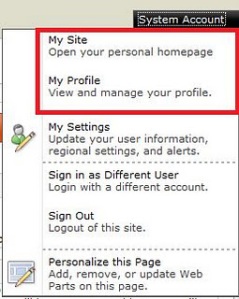 Well, the simplest way to do it is to use css:
#mp1\_0\_0\_Anchor { display: none; }
```If you want to hide my profile instead, just hide #mp1\_0\_1\_Anchor:
#mp1_0_1_Anchor { display: none; }
.ms-MenuUIUL li[text=‘My Site’] { display: none;}
##### Disable the my profile feature An even better solution is maybe to disable the ability to change the profiles. [Just remove the permission to "user personalization..." for All authenticated users in User Profile Service](http://blog.libinuko.com/2010/10/10/sharepoint-2010-howto-disable-my-site-and-my-profile-link/).comments from wordpress
John — 2012-03-03
Go back in javascript
Add link for “Go Back” in javascript (inspired by Webmasters tips):
<a href="javascript:location.href=document.referrer;">Back</a>
```If you have access to the code behind you can [do the same](http://www.beansoftware.com/ASP.NET-FAQ/Referrer-URL.aspx) with:
Request.UrlReferrer.ToString()
```If you want to go to site collection root, it is simple, too: <SharePoint:SPLinkButton runat="server" NavigateUrl="<% $SPUrl:~SiteCollection/%>">Start</SharePoint:SPLinkButton>
.gitignore for .net
At appharbor there is a simple .gitignore file for .net applications. If you use Resharper, you may find the extended version of .gitignore useful. A most comprehensive .gitignore can be found on gitextensions website. (Thanks to Vasiliy Aksyonov for the comment):
#ignore thumbnails created by windows
Thumbs.db
#Ignore files build by Visual Studio
\*.obj
\*.exe
\*.pdb
\*.user
\*.aps
\*.pch
\*.vspscc
\*\_i.c
\*\_p.c
\*.ncb
\*.suo
\*.tlb
\*.tlh
\*.bak
\*.cache
\*.ilk
\*.log
\[Bb\]in
\[Dd\]ebug\*/
\*.lib
\*.sbr
obj/
\[Rr\]elease\*/
\_ReSharper\*/
\[Tt\]est\[Rr\]esult\*
```If git tracks some files you don't want it to track, [just remove these files from the git repo](http://stackoverflow.com/questions/1273108/how-do-i-git-rm-a-file-without-deleting-it-from-disk "See the answer at Stackoverflow"):
git rm –cached file
Uninstall custom features in a batch
A funny powershell command I came upon today together with my colleague. Remove all your custom features (which start with something, say contoso):
Get-SPFeature
       | Where { $\_.DisplayName.StartsWith("Contoso.") }
       | ForEach { Uninstall-SPFeature $\_.Id -confirm:0 -force }
Have fun!
Configure User Profile Service Application
Today I have struggled with User Profile Service Application. I should have followed this awesome tutorial by ShareponitGeorge. And many thanks to my friend David for the great assistance! One important thing to beware about: Forefront Identity Manager Service must be running. Otherwise you don’t see the existing synchronization connections and you can’t add new connections.  You can ensure that this service is running by running services.msc (just press Windows button and write services). Or you can do in powershell:
Sense of case
Sometimes one must have much sense of humour. Take a look at this:
<Field ID="{0F0BC0C4-2478-4CB5-85B0-A01B79956061}"
	Name="TargetUrl"
	DisplayName="MyUrl"
	StaticName="TargetUrl"
	Type="URL"
	Sealed="TRUE"/>
```How many erros can arise in this custom field? Hmpf, everything is clear. But when I tried this (with Type="Url") many unexpected errors occured. Sometimes it is a tumbleweed with case-sensitive stuff in the case-insensitive Windows environment.Auto-resize the main container in master page
If you have a master page with fixed size (perhaps in a centered layout). Here is a simplistic js-script to auto-resize:
$(window).load(function(){
	$wider = false;
	$pagecontainer = $("#pagecontainer");
	$elementsToCareAbout = $("#ctl00\_MSO\_ContentDiv > \*, #ctl00\_MSO\_ContentDiv table")
	$elementsToCareAbout.each(function(){
		if($(this).width() > $pagecontainer.width())
		{
			$wider = true;
		}
	});
	if ($wider) $pagecontainer.width(1200);
});

Any improvement ideas and suggestions are more than welcome.Check if an html element is hidden using jQuery
Well, sometimes we need to calculate width and so on. In my next post I will write about how to fix auto-resize on fixed sized master pages. But now: a very nice stuff: how to check if an element is hidden or not:
$("#s4-leftpanel").is(":visible")
```It is a pure poetry. It reminds me of the beauty of [symbols in Ruby](http://rubylearning.com/satishtalim/ruby_symbols.html).