Access User Profile Properties from Powershell
To use only SPUser objects isn’t always sufficient. To get other properties we have to retrieve user profiles. Giles Hamson gives an example how to get and how to update user profile properties with powershell. Here is an example how to get all work phones:
$url = "http://intranet/"
$site = Get-SPSite $url
$context = Get-SPServiceContext $site
$profileManager = New-Object Microsoft.Office.Server.UserProfiles.UserProfileManager($context)
$profiles = $profileManager.GetEnumerator()

while ($profiles.MoveNext()) {
  $userProfile = $profiles.Current
  $name = $userProfile.DisplayName
  $phone = $userProfile\["WorkPhone"\]
  $line = '{0};{1}' -f $name, $phone
  write $line
}
If you are not sure what properties are called, see the whole list by typing:
Get Distinguished Name for a user
To get the distinguished name for a user, it isn’t enough to get an SPUser object. The distinguished name is the unique string for identifying a user in Active Directory (eg. CN=BeforeDAfter,OU=Test,DC=North America,DC=Fabrikam,DC=COM) Even using UserProfile object is not that clear. The distinguished name can be found in a property which can be retrieved with brackets: up[PropertyConstants.DistinguishedName]
public static string GetDistinguishedName(string login)
{
   var dn = "";
   UserProfile up;
   using (var site = new SPSite("http://dev"))
   {
      var serviceContext = SPServiceContext.GetContext(site);
      var upm = new UserProfileManager(serviceContext);
      var exists = upm.UserExists(login);
      if (!exists)
         upm.CreateUserProfile(login);
      if (exists)
      {
         up = upm.GetUserProfile(login);
         dn = up\[PropertyConstants.DistinguishedName\].Value.ToString();
      }
   }
   return dn;
}
```The code is simplified and doesn't contain any error handling. And a better handling of upm.UserExists must be implemented: If upm.CreateUserProfile(login) runs, it doesn't make it so quickly and the next step won't run (upm.GetUserProfile). If you are not working in SP Context, you can see the distinguished name for a user in Powershell:
import-module activedirectory $u = get-aduser administrator $u.DistinguishedName
Hide my site link with css
Want to hide my site link without disabling social features. 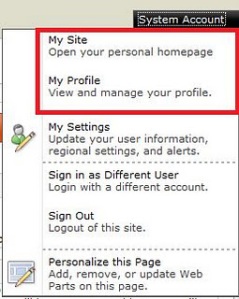 Well, the simplest way to do it is to use css:
#mp1\_0\_0\_Anchor { display: none; }
```If you want to hide my profile instead, just hide #mp1\_0\_1\_Anchor:
#mp1_0_1_Anchor { display: none; }
.ms-MenuUIUL li[text=‘My Site’] { display: none;}
##### Disable the my profile feature An even better solution is maybe to disable the ability to change the profiles. [Just remove the permission to "user personalization..." for All authenticated users in User Profile Service](http://blog.libinuko.com/2010/10/10/sharepoint-2010-howto-disable-my-site-and-my-profile-link/).comments from wordpress
John — 2012-03-03