Trigger SP2010 Workflows using JSOM
Today I found out how to start workflows in JSOM (JavaScript Object Model in SharePoint). Nothing special, but since it is not documented, it took me a while to find a solution. Here is the code which I want to keep as simple as possible. What you need to start a SP2010 Workflow for a list item or a document in JSOM, you need to load SP.WorkflowServices.js and you need to create the manager and get the service, then you can trigger a workflow using the workflow name, the list guid and the guid of the list item:
Create and download a file in javascript
Phew, I spent a lot of time to get this to work:
- Create a text based file in javascript - a simple csv or txt
- Download a file in Chrome and Internet Explorer
- Make Excel understand Unicode characters (å ä ö and many more) in csv directly.
I found many solutions on the Internet that I used to find out a solution that works for me A deep diving jsfiddle about unicode encodings, bom, line endings: http://jsfiddle.net/kimiliini/HM4rW (unfortunately, does not work in IE). There I learned one important thing: we need a BOM in order to make Excel understand that it is not just ASCII. The BOM (byte order mark) for utf-8 is %ef%bb%bf for utf-8. Without this bom you’ll see the right characters in a text editor (except Notepad of course), but if you open the csv file directly in Excel, you’ll see wrong letters. Other good resources are FileSaver.js: https://github.com/eligrey/FileSaver.js and download.js: http://danml.com/download.html and a discussion on that github repository issue: https://github.com/mholt/PapaParse/issues/175 This is my solution that is tested in Chrome and IE10:
Minimal Download Strategy. Simple
There are many correct ways (1, 2, 3, 4, 5…) of making scripts work with the Minimal Download Strategy Feature (MDS) in SharePoint 2013 and 2016. But to be honest - every time I need it, I get confused. So now it is time to find a simple solution for that. Who is better at it than the developers of the SharePoint themselves? Look at the MDS code in the built-in Display Templates:
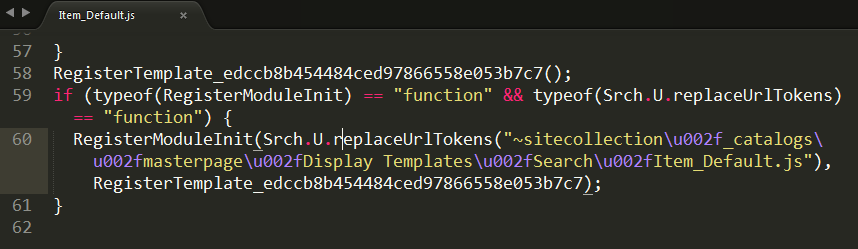
Minimal Display Template
We want to use our own Display Templates on Non-publishing sites - our team sites. Without the Publishing Feature activated you have to create an own javascript file. Here is short and concise instructions how to install it: Display Templates on Non-publishing Sites. As described on that blog, you can make copy of an existing Item_Default.js and adjust to your needs. I also asked Elio Struyf and I got the same tip. I did create my starter template. Here I want to share this very minimal javascript based Display Template. The real Minimal Display Template is in the SPCSR github repository: Item_Minimal.js It has been improved by Elio Stuyf himself :)
SharePoint Utilities - a promising JavaScript Framework
My colleagues at Bool have developed a new JavaScript framework for SharePoint - sharepoint utilities. It started on our DevDay last year - a whole free day when we could learn new things, try out new techniques or build something that was not even requested from a customer. I was not working on sharepoint utilities, so I almost forgot it until… I recently re-discovered sharepoint utilities. It is on Github, it is MIT licensed and contributions are welcome. The core of sharepoint utilities (sputils) is a set of wrappers for Search, TermStore, REST that allow you be more productive as a developer. What I find especially compelling with that it contains some other fundamental stuff that every SharePoint developer needs:
A tiny tool for User Custom Actions

Everybody loves User Custom Actions in SharePoint. That’s the only recommended way of customizing SharePoint. You have heard about it. Unfortunately there is no convinient way of administering them. People have their console applications or powershell scripts to add, update and delete user custom actions. It works but it is hard to open up Visual Studio or PowerShell every time you will try out an idea on a test site. To overcome this, I have created a tiny little tool, packaged as a bookmarklet for your browser. When you click on it, it will show your existing user custom actions and you can add new user custom actions. It is an ongoing little project, available on github, contributions are welcome. What’s left is:
Provisioning Google Maps JSLink with SPMeta2
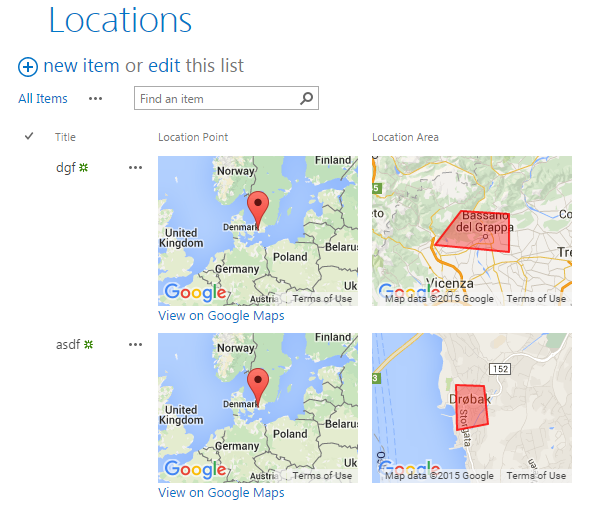
Among PnP Samples there is a solution for using Google Maps. Great solution where where you can pick a point on a map and define a spacial area on the map. Unfortunately it is a sandbox solution. I rewrote it to a code based template with SPMeta2 Framework. Now it can be installed on any site very easily, without needing UserCode Service and a cumbersome process of uploading a wsp package and activating it. The code is very simple, you can see it on github.
Setting up Raspberry Pi2 for a Dashboard Monitor
I have set up Raspberry Pi as a Dashboard Monitor a couple of times. Here I want to summarize my steps. In fact, it is nothing special, a raspberry pi that is used as a browser showing a web based dashboard in full screen, but there are some important configuration steps needed to make it as good as possible.
Install Raspbian
Raspbian is the best operating system for Raspberry Pi. Just stick with that.
Chuvash Keyboard Layout for Mac
I’ve got a Mac and one of my first questions was: How can I write in Chuvash on my Mac, obviously :) In this post I am going to tell how I created Chuvash Keyboard Layout. The solution and installation instructions are on Github: Chuvash Keyboard Layout for Mac 
What the heck is Chuvash?
For those who don’t know yet: Chuvash are people who live in Chuvash Republic in Russian Federation, and abroad, as me. We are 1.5 million. Chuvash is also a language, an official language of the Republic, a minority language, that is completely different from the second official language Russian. Chuvash uses Cyrillic letters, all 33 Russian letters plus 4 additional letters: A breve (Ӑ), E breve (Ӗ), C cedilla (Ҫ) and U with double acute (Ӳ).
My first Office Add-In
Yesterday I participated in the Hackathon at European SharePoin Conference in Stockholm. The main goal was to learn more about Office Add-Ins. I wanted to create a very very simple app to learn the basics. Here in this post I’ll provide some links and describe the steps needed to start developing your Office Add-Ins. The Add-in I created is an Outlook Add-In, it is called “Joke Inserter” and with it you can insert a random Chuck Norris joke. It is just for fun, but it demonstrated how an add-in can be installed, made available in “New E-mail” and interact with the e-mail you are writing.