Estimated Completion in Write-Progress in PowerShell

Have you also got many sites in your tenant? Write-Progress is the bare minimum in a script that goes through all sites. But there is also another nice way to make easier to see the progress - estimated completion time.
Although the idea comes from another blog post (My life is a message), I thought it could be worth sharing it again, especially in the cloud context.
Here is a bit simplified scenario: Getting information for every site. The status message in Write-Progress contains also the estimated completion time.
Optimizing lookups in PowerShell
Have you had a PowerShell script that contains two bigger arrays and you wanted merge the information. It can become quite slow if you need to search for every item from array A through all items in array B. The solution is called a HashTable! It might be not an advanced tip for some, but I was really glad to see a huge improvement, so I decided to share it as a post.
Get totals from a list view using PowerShell
Today I will share a short script for getting totals from a list view in SharePoint. Imagine this scenario: you have set up a list view with totals and you want get the totals every day for statistics or some other reasons. Instead of getting all items, and/or fiddling around with CamlQueries, there is a better and quicker way - List.RenderListData. This combined with a tip from Piyush K Singhs blog post Get Aggregate Values… I came up with an idea to read the ViewXml from an existing view and retrieve the totals (in my case Count and Sum). Enough talking, let’s take a look at the code:
My PowerShell Profile

It has been a while I last worked with PowerShell. I had my custom profile where I had my own prompt and some other customizations. Now I cannot find it anymore. I’ll start with the new one and I am saving it on my blog, so it will be easier to find in future:
Function Prompt {
  $PromptData="PS $($executionContext.SessionState.Path.CurrentLocation)$('>' * ($nestedPromptLevel + 1)) "
  $host.ui.RawUI.WindowTitle=$PromptData +'-'+(Get-Date).tostring()
  # .Link
  # http://go.microsoft.com/fwlink/?LinkID=225750
  # .ExternalHelp System.Management.Automation.dll-help.xml
}
The prompt function comes from the scripting guy blog. To customize your profile, just open it in a text editor (in my case: code)
Export SharePoint List Data To Xml through PowerShell
Today my colleague Johannes Milling wrote an awesome post: Export SharePoint List Data To XML Directly from the GUI He uses the old and forgotten RPC-based web service owssvr.dll (that has existed since SharePoint 2003). This url pattern is used to get the xml-formatted list data for a specific ListView:
http://<site_url>/_vti_bin/owssvr.dll?Cmd=Display&List=<list guid>&View=<view guid>&Query=*&XMLDATA=TRUETo automate this I have written a PowerShell function. All the details are in the comments:
Showing Birthdays and Job Anniversaries in the Newsfeed

In our project we have a requirement to show birthdays and job anniversaries in the Newsfeed. The solution is simple (when you know it) but there has not been any information about it online, until today. I want to share a few lines of PowerShell code to enable Anniversary notifications in the Newsfeed. This desired piece of code was written by my colleague Emma Degerman. Enjoy:
$job = Get-SPTimerJob | ? {
  $_.TypeName -like "*.UserProfileChangeJob"
}
$job.GenerateAnniversaries = $true
$job.Schedule = [Microsoft.SharePoint.SPSchedule]::FromString("hourly between 55 and 55")
$job.Update()
The code retrieves the Timer Job that changes User Profiles, sets “GenerateAnniversaries” to true, then it updates the schedule to run it before the Activity Feed Timer Job and updates it. By the way, it is only applicable for SharePoint On Premises.
Load git into PowerShell
Just a little productivity tip. If you use git on Windows, you probably already have the Github for Windows application. This application adds the Git Shell:
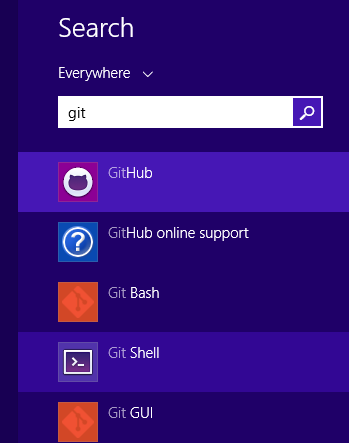
The Git Shell will open a PowerShell window and execute shell.ps1 from the Github directory:
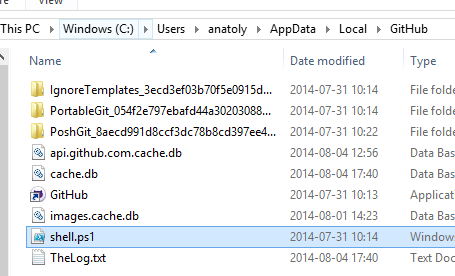
What it won’t do is to load your personal PowerShell profile. I want to use my PowerShell profile that creates some links and adjust the look-and-feel and the promt of the shell. By the way I have published my profile.ps1 as a gist:
A presentation about PowerShell and SharePoint
Yesterday I had a little presentation about PowerShell basics in the SharePoint context. Here you can see the presentation I’ve published on slideshare. The text is in Swedish.
[slideshare id=37316916&doc=sharepoint-140724063012-phpapp01&w=600]
A PowerShell one liner
PowerShell is powerful. You can write concise, well formulated, functional-style code. Recently I got the following quiz:
You’ve got $100. You have to buy exactly 100 animal, at least 1 dog, 1 cat and 1 mouse. 1 dog costs $15, 1 cat costs $1, 1 mouse costs $0.25.
There can be many ways to solve it. But look at this one line solution. It is quite impressive what you can do with PowerShell
Debugging "What's happening" in Communities
Recently an issue was reported about count mismatches in SharePoint 2013 Communities. The number of replies in category tiles sometimes is different compared to the community stats in the web part called “What’s happening”. The actual number of replies is 1 in the figure below. The user who has reported has tried to add, update and delete discussions and replies.


I have invested some time debugging this issue. It would be pity to not share my findings. Well the first thing to do was to determine the type name for the “What’s happening” web part. To do so just edit the page and export the web part. In the exported .webpart file I saw that the type was Microsoft.SharePoint.Portal.WebControls.DashboardWebPart. With that knowledge it is time to open ILSpy, an awesome and free(!) assembly browser and decompiler. Load the “Microsoft.SharePoint.Portal” assembly from GAC into ILSpy. Then use F3 to search for DashboardWebPart: