Show Path Column in SharePoint
PnP.PowerShell is just the tool you need to show the Path column in a SharePoint document library view. Scroll down to see the script, or read on to learn more.
An introduction
Do you still have folders in SharePoint? Well, you are not alone. Remember the old dream of relying on metadata only? Forget it! As a matter of fact, folders are still a popular way of organizing files in SharePoint. When not overused, they provide “metadata” by itself, metadata that works even in synced folders, in archive scenarios, works best with Teams etc.
Automate Creation of Git Repos Using Azure DevOps API
Today I got a question: how can we precreate 50 git repositories in an Azure DevOps Project? I started to learn about the API in Azure DevOps and I found it very interesting. With the API you can script and automate administration of projects, repositores, pull requests etc. To keep this blog post simple and digestable I would like to focus on the intitial request - creating git repositories by code.
A powershell script for activating an eligible role assignment in Azure AD
Recently my role assignments in Azure AD were switched from permanent to eligible ones. This is part of PIM - Privileged Identity Management, you can read more about it on MS Docs:
To activate your eligible assignment you can use Azure Portal, Graph API, and PowerShell. The activation in the portal and Graph API is described on MS Docs:

Sites.Selected and Governance
The new permission in Graph API - Sites.Selected - is a step in the right direction. Since long we have been looking for ways of scoping the accesses to live up to the least privilege principle. It was either nothing or everything. I have tried out the new Sites.Selected permission and here are my findings.
First of all, if you haven’t heard about Sites.Selected, please visit these pages to find out more. I am skipping the introduction, since there are already good resources on that out there.
Smarter way of loading SharePoint CSOM dll in PowerShell
Have you also got a legacy powershell script that loads SharePoint dlls and runs CSOM code directly? It’s quite easy to convert to PnP PowerShell. But if you run out of time and just need to execute the script, then I have a quick tip for you.
First of all, a CSOM script can be recognized by Add-Type commands (or Import-Module) plus the SharePoint dll paths.

Loading the dll the old way.
A cost effective way of running legacy scripts in the cloud
Have you also got some old huge scripts that run on a server locally? Have you also considered moving them to the cloud? Here comes an idea of how to do it quickly and easy.
In my case I have some older powershell scripts that are harder to convert to serverless applications:
- They use MSOnline module in PowerShell, hence they require rewriting to AzureAD before using them in an Azure Function
- They take around 15 minutes to complete, Azure Functions Consumption Plan is limited to 10 minutes. Of course I can split them in several parts, but I am looking for an easy way right now, I have to postpone refactoring because I am not sure if there is a real need for this script solution.
- They process a lot of data and consume more that 400 MB memory which makes it crash when I put it in a Azure Automation Runbook.
Well, maybe a Windows Server VM in Azure is the only way? While recently setting up a minecraft server and following a blog post that proposes auto shutdown and logic apps to start the server, I came up with an idea to use exactly the same approach to make it as cost effective as possible.
Demote News in SharePoint Online
In case you published a news in SharePoint Online and you now want to “downgrade” it to a regular page, I have a solution for you.
The reasons why you would like to demote a News might vary:
- You publish an important message, perhaps a note about an operational disturbance. It might not relevant anymore, but you still want to keep the page in case someone wants to access the information.
- You accidentally create a page as a news.
- …

Add a security group as hubbers using PowerShell
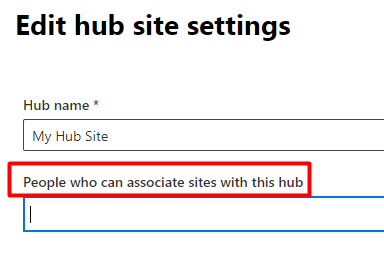
Today I needed to add a security group to “People who can associate sites with this hub” through PowerShell. Here is quick how-to. I usually say “hubbers” instead of the long “People who….”. By the way, if you want to know what prerequisites there are for being a hubber, read my other blog post
An example of how to add a security group is missing in the MS Docs:
Setting up a HelloWorld Azure Alert

Azure Alerts are awesome for monitoring of solutions in Azure. If you are about to set up your first Alert Rules in Azure, then it’s a guide for you. Configuring alert rules can be quite intimidating at first, with all the options, metrics, evaluation times, etc.
Here is a very very simple setup that can serve as a teaser and help you get started with the Azure Alerts.

Is an M365 Group a Yammer Community

Nowadays a Yammer Community gets a corresponding Microsoft 365 Group (Office 365 Group, Unified Group). In your work as an SPO Admin, you might need to differentiate “ordinary” Modern Team Sites from those ones that were created for a Yammer Community.
They both have GROUP#0 as Template. On the actual SPO Site object, there is nothing that you can use to differentiate those. Neither you can use the Office 365 Group information. But there is a way: if you connect to Exchange Online and get the group from there, then there is something useful.