Hide my site link with css
Want to hide my site link without disabling social features. 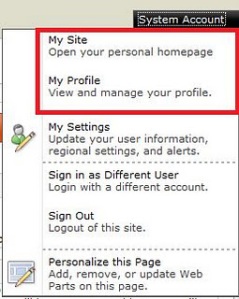 Well, the simplest way to do it is to use css:
#mp1\_0\_0\_Anchor { display: none; }
```If you want to hide my profile instead, just hide #mp1\_0\_1\_Anchor:
#mp1_0_1_Anchor { display: none; }
.ms-MenuUIUL li[text=‘My Site’] { display: none;}
##### Disable the my profile feature An even better solution is maybe to disable the ability to change the profiles. [Just remove the permission to "user personalization..." for All authenticated users in User Profile Service](http://blog.libinuko.com/2010/10/10/sharepoint-2010-howto-disable-my-site-and-my-profile-link/).comments from wordpress
John — 2012-03-03
Go back in javascript
Add link for “Go Back” in javascript (inspired by Webmasters tips):
<a href="javascript:location.href=document.referrer;">Back</a>
```If you have access to the code behind you can [do the same](http://www.beansoftware.com/ASP.NET-FAQ/Referrer-URL.aspx) with:
Request.UrlReferrer.ToString()
```If you want to go to site collection root, it is simple, too: <SharePoint:SPLinkButton runat="server" NavigateUrl="<% $SPUrl:~SiteCollection/%>">Start</SharePoint:SPLinkButton>
Uninstall custom features in a batch
A funny powershell command I came upon today together with my colleague. Remove all your custom features (which start with something, say contoso):
Get-SPFeature
       | Where { $\_.DisplayName.StartsWith("Contoso.") }
       | ForEach { Uninstall-SPFeature $\_.Id -confirm:0 -force }
Have fun!
Configure User Profile Service Application
Today I have struggled with User Profile Service Application. I should have followed this awesome tutorial by ShareponitGeorge. And many thanks to my friend David for the great assistance! One important thing to beware about: Forefront Identity Manager Service must be running. Otherwise you don’t see the existing synchronization connections and you can’t add new connections.  You can ensure that this service is running by running services.msc (just press Windows button and write services). Or you can do in powershell:
Sense of case
Sometimes one must have much sense of humour. Take a look at this:
<Field ID="{0F0BC0C4-2478-4CB5-85B0-A01B79956061}"
	Name="TargetUrl"
	DisplayName="MyUrl"
	StaticName="TargetUrl"
	Type="URL"
	Sealed="TRUE"/>
```How many erros can arise in this custom field? Hmpf, everything is clear. But when I tried this (with Type="Url") many unexpected errors occured. Sometimes it is a tumbleweed with case-sensitive stuff in the case-insensitive Windows environment.Auto-resize the main container in master page
If you have a master page with fixed size (perhaps in a centered layout). Here is a simplistic js-script to auto-resize:
$(window).load(function(){
	$wider = false;
	$pagecontainer = $("#pagecontainer");
	$elementsToCareAbout = $("#ctl00\_MSO\_ContentDiv > \*, #ctl00\_MSO\_ContentDiv table")
	$elementsToCareAbout.each(function(){
		if($(this).width() > $pagecontainer.width())
		{
			$wider = true;
		}
	});
	if ($wider) $pagecontainer.width(1200);
});

Any improvement ideas and suggestions are more than welcome.Check if an html element is hidden using jQuery
Well, sometimes we need to calculate width and so on. In my next post I will write about how to fix auto-resize on fixed sized master pages. But now: a very nice stuff: how to check if an element is hidden or not:
$("#s4-leftpanel").is(":visible")
```It is a pure poetry. It reminds me of the beauty of [symbols in Ruby](http://rubylearning.com/satishtalim/ruby_symbols.html).Add article content and editing to your Page Layout
If you work with Sharepoint Designer, use your own page layouts and want to have them for a page in a publishing site, you have to put in some controls in order to see th page content in you custom page layout. Put in a appropriate place in you page layout ( taken from ArticleLeft.aspx):
<div>
	<PublishingWebControls:EditModePanel runat="server" CssClass="edit-mode-panel">
		<SharePoint:TextField runat="server" FieldName="Title"/>
	</PublishingWebControls:EditModePanel>
	<div class="captioned-image">
		<div class="image">
			<PublishingWebControls:RichImageField FieldName="PublishingPageImage" runat="server"/>
		</div>
		<div class="caption">
			<PublishingWebControls:RichHtmlField FieldName="PublishingImageCaption"
				AllowTextMarkup="false" AllowTables="false" AllowLists="false"
				AllowHeadings="false" AllowStyles="false" AllowFontColorsMenu="false"
				AllowParagraphFormatting="false" AllowFonts="false" PreviewValueSize="Small"
				AllowInsert="false" runat="server"/>
		</div>
	</div>
	<div class="article-header">
		<div class="date-line">
			<SharePoint:DateTimeField FieldName="ArticleStartDate" runat="server"/>
		</div>
		<div class="by-line">
			<SharePoint:TextField FieldName="ArticleByLine" runat="server"/>
		</div>
	</div>
	<div class="article-content">
		<PublishingWebControls:RichHtmlField FieldName="PublishingPageContent"
			HasInitialFocus="True" MinimumEditHeight="400px" runat="server"/>
	</div>
	<PublishingWebControls:EditModePanel runat="server" CssClass="edit-mode-panel roll-up">
		<PublishingWebControls:RichImageField FieldName="PublishingRollupImage"
			AllowHyperLinks="false" runat="server" />
		<asp:Label text="<%$Resources:cms,Article\_rollup\_image\_text%>" runat="server" />
	</PublishingWebControls:EditModePanel>
</div>
comments from wordpress
Renate — 2014-05-01
Add TreeView to Site
For all of who use Randy Drisgill’s starter masters, it won’t help if you go to Site Actions TreView and just enable it, because the DelegateControl is in a hidden panel. To really restore the original treeview you have to copy this xml from v4.master:
<Sharepoint:UIVersionedContent runat="server" UIVersion="4">
	<ContentTemplate>
		<Sharepoint:SPNavigationManager
		id="TreeViewNavigationManagerV4"
		runat="server"
		ContainedControl="TreeView"
		CssClass="s4-treeView"
		>
		  <SharePoint:SPLinkButton runat="server"
			NavigateUrl="~site/\_layouts/viewlsts.aspx"
			id="idNavLinkSiteHierarchyV4"
			Text="<%$Resources:wss,treeview\_header%>"
			accesskey="<%$Resources:wss,quiklnch\_allcontent\_AK%>"
			CssClass="s4-qlheader" />
			  <div class="ms-treeviewouter">
				<SharePoint:DelegateControl runat="server" ControlId="TreeViewAndDataSource">
				  <Template\_Controls>
					<SharePoint:SPHierarchyDataSourceControl
					 runat="server"
					 id="TreeViewDataSourceV4"
					 RootContextObject="Web"
					 IncludeDiscussionFolders="true"
					/>
					<SharePoint:SPRememberScroll runat="server"
						id="TreeViewRememberScrollV4"
						onscroll="javascript:_spRecordScrollPositions(this);"
						style="overflow: auto;height: 400px;width: 155px; ">
					  <Sharepoint:SPTreeView
						id="WebTreeViewV4"
						runat="server"
						ShowLines="false"
						DataSourceId="TreeViewDataSourceV4"
						ExpandDepth="0"
						SelectedNodeStyle-CssClass="ms-tvselected"
						NodeStyle-CssClass="ms-navitem"
						SkipLinkText=""
						NodeIndent="12"
						ExpandImageUrl="/_layouts/images/tvclosed.png"
						ExpandImageUrlRtl="/_layouts/images/tvclosedrtl.png"
						CollapseImageUrl="/_layouts/images/tvopen.png"
						CollapseImageUrlRtl="/_layouts/images/tvopenrtl.png"
						NoExpandImageUrl="/_layouts/images/tvblank.gif"
					  >
					  </Sharepoint:SPTreeView>
					</Sharepoint:SPRememberScroll>
				  </Template_Controls>
				</SharePoint:DelegateControl>
			  </div>
		</Sharepoint:SPNavigationManager>
	</ContentTemplate>
</SharePoint:UIVersionedContent>
and paste it before:
Creating custom my site template
Here are some links to start creating a custom my site template:
If you want to take the default templates take a look at **{SharepointRoot}\TEMPLATE\SiteTempates\SPMSITE **(the site template for “my content” - an individual site collection rootweb template, and first of all {SharepointRoot}\TEMPLATE\SiteTempates\SPMSITEHOST, the host site template for my sites. They include pages and onet.xml. Both use mysite.master which can be found at: