Good pattern for javascript files
SP.js exists in two variants in debug mode and in modified. When you develop it is better to use debug mode. When it goes to production it is better to use minified files. The same you can do with your files. Wictor Wilen explains how to do minify your custom javascript files. I think it is a good pattern to create javascript files and call them something-something**.debug.js**. Then when you are done, run the custom tools to minify them.
Show html in ModalDialog
We can use ModalDialogs to show not only pages, but some html:
var htmlElement = document.createElement('p');

var helloWorldNode = document.createTextNode('Hello world!');
htmlElement.appendChild(helloWorldNode);

var options = {
	html: htmlElement,
	autoSize:true,
	allowMaximize:true,
	title: 'Test dialog',
	showClose: true,
};

var dialog = SP.UI.ModalDialog.showModalDialog(options);Custom PlaceHolder
You want some custom content in your site and it is different from page to page. Well, I wrote how to achieve this with delegate controls. Another approach is to use PlaceHolders. Maybe you can use some existing placeholders. There are so many unused placeholders in v4.master. Like PlaceHolderLeftActions. If you use starter master pages from Randy Drisgill, you must move these from invisible panel. To create custom placeholder is very easy: Just copy an existing placeholder in the master page and name it som appropriate like:
Create your own search box
It is very simple. Create a new module: SearchArea. Delete Sample.txt and Elements.xml. Create a new file: SearchArea.xml

<?xml version="1.0" encoding="utf-8"?>
<Elements xmlns="http://schemas.microsoft.com/sharepoint/">
  <Control
      Id="ContosoSearchAreaBox"
      Sequence="15"
      ControlClass="Microsoft.SharePoint.Portal.WebControls.SearchBoxEx"
      ControlAssembly="Microsoft.Office.Server.Search, Version=14.0.0.0,
			Culture=neutral, PublicKeyToken=71e9bce111e9429c">
    <Property Name="GoImageUrl">/\_layouts/images/Contoso/searchbutton.png</Property>
    <Property Name="GoImageUrlRTL">/\_layouts/images/Contoso/searchbutton.png</Property>
    <Property Name="GoImageActiveUrl">/\_layouts/images/Contoso/searchbutton.png</Property>
    <Property Name="GoImageActiveUrlRTL">/\_layouts/images/Contoso/searchbutton.png</Property>
    <Property Name="DropDownMode">HideDD\_useDefaultScope</Property>
    <Property Name="FrameType">None</Property>
    <Property Name="UseSiteDefaults">false</Property>
  </Control>
</Elements>
Next add your searcharea module to a site scoped feature.
In the masterpage locate this:
<SharePoint:DelegateControl runat="server"
       ControlId="SmallSearchInputBox" Version="4" />
and replace with your brand new search area:
Link to Home on Top Navigation Bar
If you have a custom site definition and want to have a link to RootWeb, just add NavBarPage to your module:
<Module Name="OrklaRootBlank" Url="" Path="">
  <File Url="default.aspx">
	<NavBarPage Name="$Resources:core,nav\_Home;"
		Url="~site" ID="1002" Position="Start" />
  </File>
</Module>Add local admin in cmd
Just run this in cmd, or powershell:
net localgroup Administrators /add domainname\\usersCheck if a file exists
var imgName = "hello.jpg";
var folder = web.GetFolder("PublishingImages");
var img = web.GetFile(folder.ServerRelativeUrl + "/" + imgName);
if (img.Exists) {
  doSomething();
}Todolist in VS
A really nice feature is a task list. Just write //TODO something something in your code and it appears in the task list which can be shown through View - Task List in Visual Studio. 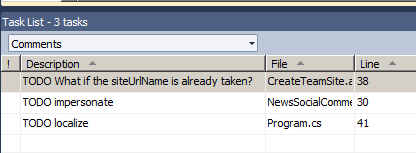
Resize image with jQuery to fit the div
There are many interesting jQuery plugins for resizing and cropping of images. Among them are jrac and image scale. I have tested the latter: It works very fine
$(window).load(function() {
    var $imgContainer = $("#layout-news-image");
    var $newsImg = $("#layout-news-image img\[rel!='sp\_DialogLinkIgnore'\]");
    $imgContainer.css("width", $imgContainer.parent().width());
    if ($newsImg.length > 0) {
	    if ($newsImg.width() < $imgContainer.width()) {
		    $imgContainer.width($newsImg.width());
	    }
	    if ($newsImg.height() < $imgContainer.height()) {
		    $imgContainer.height($newsImg.height());
	    }
	    $newsImg.imgscale({
		    parent : '#layout-news-image',
		    center: "true",
		    scale: "fill"
	    });
    }
});
```This script checks if the original image is lesser than container div and doesn't resize if it is so. **#layout-news-image img\[rel!='sp\_DialogLinkIgnore'\]** means that do not resize if there is a hidden image with rel="sp\_DialogLinkIgnore". See the [jQuery selectors](http://api.jquery.com/category/selectors/) for more info. This script can be improved by adding window resize event in javascript. I use **$(window).load** instead of the usual _$(document).ready_ because [ready-function in jQuery runs when DOM is loaded, if the page is not cached it happens before the image is loaded](http://web.enavu.com/daily-tip/daily-tip-difference-between-document-ready-and-window-load-in-jquery/). $(document).ready doesn't work.
comments from wordpress
sdfsdf — 2012-06-04