Monitoring Microsoft 365 using Raspberry Pi and M365 CLI
I would like to show you my recent hobby project with a raspberry pi, a unicorn phat and the powerful cli-microsoft365: A simple monitoring solution of Microsoft 365 Services.

Status of some important services in Microsoft 365
In essence, I put the unicorn phat onto the raspberry pi zero w and wrote this python script:
The python script checks the service status every five minutes and shows it with colors on the unicorn phat.
Teams incoming webhooks for performance monitoring
Incoming webhooks in Teams are great, indeed. Last week I saw this tweet, which inspired me to share one of our webhooks.
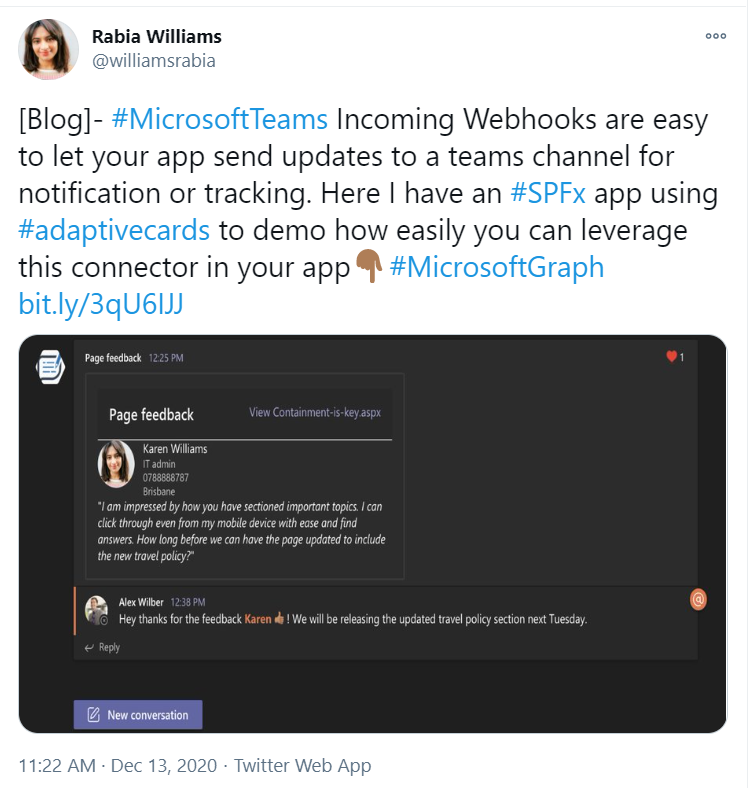
There are many scenarios where it can be used, I would also like to share one of our scenarios: notifying our DevOps team about performance issues in SharePoint Online, detected through Exoprise.

This adaptive card (in Swedish) shows an alarm from Exoprise about login problems.
DIY: Integrating Trådfri lights with Teams presence
It seems that Work from Home (WFH) is here to stay, it’s okay. I’d say, Work from a Smart Home is even more okay. To me, Home Automation (HA) and Work from Home (WFH) are really two peas in a pod.
Today’s “guest” is a tiny application that I’ve set up on my raspberry pi to listen to my presence (status) in Teams and show it with colors of my smart RGB light (IKEA Trådfri).
Is an M365 Group a Yammer Community

Nowadays a Yammer Community gets a corresponding Microsoft 365 Group (Office 365 Group, Unified Group). In your work as an SPO Admin, you might need to differentiate “ordinary” Modern Team Sites from those ones that were created for a Yammer Community.
They both have GROUP#0 as Template. On the actual SPO Site object, there is nothing that you can use to differentiate those. Neither you can use the Office 365 Group information. But there is a way: if you connect to Exchange Online and get the group from there, then there is something useful.
Deploying SPFx using Office 365 cli, custom AAD App and Azure Pipelines
In this post I would like to share some findings from setting a deployment of SPFx. In my work:
- I need to deploy SPFx solutions using Azure Pipelines
- I need to use the least privileges/permissions
- I cannot use Legacy Authentication
First of all, big thanks to @waldekm and the whole community of @office365cli and @m365pnp for the quick help, and that outside working hours.
Let’s take a look at the setup piece by piece
Modern Team Site without an Office 365 Group
These are my findings around Modern Sites without Office 365 Groups. It is, of course, a subject to change.
Today (2020-02-21) when you create a Modern Team Site without a group, you will get a site with the template STS#3. This oldie has been around for a while, hasn’t it?
I would always recommend creating Office 365 Group Connected sites.
How it is created
Through PowerShell/REST or from SharePoint Home, if your account is not allowed to create Office 365 Groups, it will automatically create a site without a group.
Multilingual MS Forms
Want to translate your MS Forms into other languages? Create a form, not a quiz. It is available in both Forms and Forms Pro licenses.
Today I want to share one of my findings. One of those that seem obvious once you know, but that take time to find out.
Unfortunately, there is no official comparison of what is included in MS Forms vs. MS Forms Pro. So I thought that the ability to have forms in multiple languages was connected to the license.
Using Sway as a simple static site builder
Sometimes all you need is just a simple static web page: instructions, a landing page, a collection of links. I think I have a perfect use case for Sway. Consider a scenario similar to what Laura Kokkarinen writes in her blog post:
An external user invitation needs an inviteRedirectUrl. Usually it is myapps.microsoft.com. In Laura’s case it was a given extranet url.
Permissions in SPFx apply to your whole tenant
Once you approve a permission request from an SPFx app, it will grant the same permission to all other apps in the same tenant.
Nothing new, but I want to emphasize that in that blog post only dedicated to that. You can read it here:

A simple sketch over the permissions.
Here is a simple FAQ to explain what it means:
The Path Length Limit of 400 chars in SharePoint Online

This post is my summary and my conclusions on the Path Length Limit in SharePoint Online and OneDrive.
How the path length is calculated
Path Length is not the same as the URL length. It is the relative Url.
/sites/site-url/documenlibrary/folder1/folder2/filename.fileextensionCalculations rules
- Only the server relative url part is counted. The “https://[tenant].sharepoin.com” has no impact on that. It starts from the foward slash: “/sites” (or /teams).
- An encoded value such as a blankspace (%20) is treated as one character, not three.
- A unicode character, and an emoji is treated as one character. Good news for Non-English Names.
- Url Parameters, like “?Web=1” are not calculated.
- The site url and the document library url is taken into account
- All slashes are included
- A file extension is also included, and even the dot, e.g. “.docx”
Other related information
- A site url and a group name can only be 64 characters max.
- The path in the “Copy Link” is much shorter than the “real” path
- There is no limit (as of time of writing - 2019-10-30) on the folder name length (other than the bigger limit of 400 characters), I had no issues to add a folder name with 312 characters.
