Kom igång med SPMeta2
SPMeta2 (eller bara M2) är ett relativt nytt ramverk för provisionering av SharePoint-artefakter. Bakom ramverket ligger ett gediget arbete. I den här posten vill jag skriva upp mina steg för att sätta upp ett litet projekt. För mig är SPMeta2 nytt och huvudprincipen i den här bloggposten att få en fungerande lösning så snabbt som möjligt. Informationen här kan snabbt bli inaktuell, eftersom SPMeta2 förändras och förbättras väldigt snabbt. Vad är SPMeta2 SPMeta är ett ramverk för att provisionera SharePoint-artefakter, allt från fält, innehållstyper, listor, dokumentbibliotek, user custom actions, ladda upp filer med mera. Klassiskt har vi gjort provisionering med hjälp av XML-baserade moduler och features. SPMeta2 erbjuder ett Fluent API som är kodbaserat. Med hjälp av SPMeta2 definierar man en modell (enkla objekt POCOs) som inte har beroendet till SharePoint. Modellen används sedan av Provision-delen som anropar modellen för specifika versioner: SharePoint 2013, SharePoint 2010, Office 365 med mera. Man kan välja CSOM och SSOM. Provision är också flexibel vad som gäller paketering: det kan vara en konsolapplikation, en SharePoint-app, ett wsp-paket, en PowerShell-modul. Se följande länkar:
Method "GetList" does not exist
I troubleshooted a piece of CSOM code in SharePoint 2013. I got the following error:
Method “GetList” does not exist
The reason was that the method GetList was not imlemented until March 2015 CU (15.0.4701.1001), and the SharePoint farm I had was SharePoint 2013 SP1 (15.0.4569.1000). So the solution is to install the Cumulative Update or use web.Lists.GetByTitle. GetByTitle has one aweful shortcoming: it doesn’t work in multilingual environments. So I have recommended to install the March 2015 CU.
Tillgänglighet i SharePoint
From 1 januari 2015 är bristande tillgänglighet inkluderad i svenska diskrimineringslagen. Detta krav på tillgängligt webbinnehåll ställer högre krav på SharePoint-baserade webbplatser i offentliga sektorn (och helst i alla webbplatser). Regler och riktlinjer för tillgänglighet på webben är definierade av W3C i ett dokument som heter: Web Content Accessibility Guidelines (WCAG) 2.0 vilket finns i en auktoriserad översättning på svenska: Riktlinjer för tillgängligt webbinnehåll (WCAG) 2.0. (Gjort av Funka)
Hur ska vi tänka om Tillgänglighet i SharePoint
Som vilket webbaserat system som helst bör man i SharePointlösningar tänka på tillgänglighet i alla faser av projektet. Liksom säkerhet och prestanda, finns Tillgänglighet med både i Design- och arkiktekturfasen, i utvecklingen, i lanseringen och utbildingen samt i förvaltningen av ett system. Det ska finnas med Governance-modellen. SharePoint är såklart inte ett vanligt webbsystem, utan det är ett stort metasystem. Vi kan dela in det i tre lager för att kunna hantera problem som kan uppstå: [caption id=“attachment_3709” align=“alignnone” width=“454”] ”Sköldpaddor hela vägen ner”: Tre lager av SharePoint som påverkar tillgänglighet: Platform, Egna Lösningar och Använarinnehåll[/caption]
Onpremifying SharePoint apps
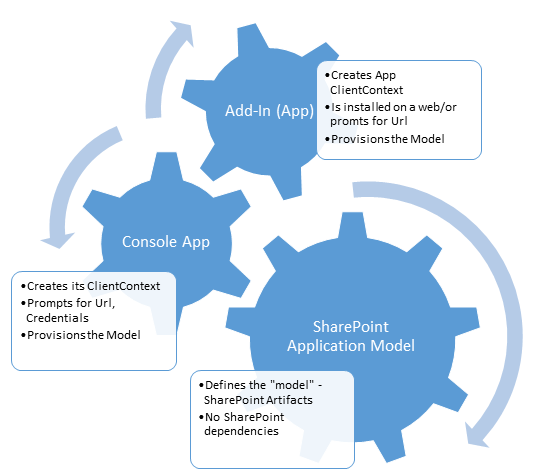 We want to make an app available in SharePoint OnPrem, we want to onpremify it. Rethink SharePoint apps and provisioning SharePoint artifacts. It has been a while since I updated my blog – Chuvash.eu. I had my vacation, I visited the sunny and green Chuvashia. Now I am back and I am looking forward to an awesome SharePoint Autumn. One of the first things I had to deal with in this SharePoint Autumn was Onpremifying of a SharePoint Online App. We have an app that has gained popularity and we want to make it available for SharePoint OnPrem. There is no such word Onpremify (yet?), I know, it is a Swenglish happy word making (onpremifiera), but I like the word “onpremify” a lot. There is still uncertainty around the purpose of SharePoint apps. One app type, though, has been used a lot in our company: an app that provisions SharePoint Artifacts – that creates SharePoint Applications. What I mean by SharePoint Applications can be read in my blog post:
Resetting SharePoint Search Configuration Cache
Now it is the second time it happens that the search cannot return any results. This hickup is rare but it happens. To solve it I had to follow these steps:
- Stop the Timer Service
- Clear the configuration cache
- Find in \ProgramData\Microsoft\SharePoint\Config the folder where the file cache.ini exists
- Delete every file from this folder EXCEPT cache.ini
- Open cache.ini, delete the content and put ’1′ (without the quotes) in it and save the file
- Restart the Timer Service
- Index reset
- Full crawl
Source: ITIDea. The linked blog post saved my afternoon today. Thank you, Anita Boerboom.
Why Swedish matters
I Sverige är engelskan är väldigt stark. Speciellt i IT-branschen är vi vana att ha i princip allt på engelska, från kommentarer i koden till stora upphandlingar, rapporter och dokumentation. Trots det ser jag ett stort behov av att kunna prata om IT på svenska. Det gäller både lokala företag och globala företag. Det finns flera anledningar:
- Företag i Sverige följer svenska lagar som är skrivna på svenska, för att leva upp till kraven ska man kunna formulera sig på svenska.
- Modersmål eller det språk som man använder mest i vardagen (gäller mig bland annat) är den snabbaste vägen för kommunikation som ger en högre grad av nyansering. Att kunna nyansera krav och önskemål tidigt i projekt är guld värt (enligt många av mina korrespondenter). Man behöver spendera mindre tid på att formulera och tolka krav.
- En mer ideologisk anledning (men en viktig sådan) är att vi som bor i Sverige har skyldighet att utveckla och hålla svenskan levande, inte minst inom IT-sektorn.
Svenska är en stor möjlighet för att verkligen ge mervärde till våra kunder, möta dem på hemmaplan, prata ett gemensamt språk. Startpunkten till den här diskussionen har varit en ny webinar som jag planerar hålla den 14 april kl 10. Webinarens titel är SharePoint i molnet.Det finns ganska mycket information om SharePoint Online och Office 365 på engelska. Det är dock ganska sparsamt med information på svenska. https://www.eventbrite.com/e/sharepoint-i-molnet-tickets-15976529229 Det här är det som väntar dig som vill delta i webinaren:
Publishing Visio drawings as SVG
 In my post yesterday I showed how to publish Visio files as html image maps. That was one of the alternatives. Today I’ll present how to use SVG to achieve the same goal: publish Visio diagrams in SharePoint without having the Enterprise license. There are some alternatives:
- Show Visio diagrams as pdf files on SharePoint Pages
- Embed Visio diagrams as html image maps - Read more in my previous blog post
- Embed Visio diagrams as svg pictures - This blog post.
- Link to Visio files that are opened using Visio Web Viewer in a new browser tab.
SVG
SVG stands for scalable vector graphic, it is a xml-based format for defining images. It is supported in all modern browsers. Because SVG can be part of a page markup, it can be easily embedded into SharePoint.
Publishing Visio diagrams as html image maps
 I got a question from a customer: We have our processes defined in Visio, we don’t have SharePoint Enterprise CALs to use the Visio webpart. We have links in process maps. What can we do? Well there are three five ways to solve this business need:
- Find money for SharePoint Enterprise - Very expensive
- Show Visio diagrams as pdf files on SharePoint Pages - Expensive.
- Embed Visio diagrams as html image maps - Least expensive
- Embed Visio diagrams as svg pictures - Separate blog post.
- Link to Visio files that are opened using Visio Web Viewer in a new browser tab.
If the business needs other features available only in Enterprise, just use the solution 1. Stop reading. If you are looking for alternatives, then consider pdf and image maps. I have seen projects where pdf files were embedded in the SharePoint Pages. It required a pdf plugin in IE, a lot of time to make it look the same in different browsers and the scroll and fixed size was still there. It was expensive because of the development and configuration time. In this blog post, I want to show the alternative number 3: embedding Visio diagrams as html image maps. This is only a Proof-of-concept so far.
Struggling with Taxonomy in CSOM
The parts of the CSOM for updating Taxonomy fields are really cumbersome. I mean, look at this code, nicely provided by Vadim Gremyshev (@vgrem). To set a value in a taxonomy field we have to assemble a text representation, and adding a “fake” lookup id. What is needed is a wrapper for handling Taxonomy fields. SPMeta2 and PnP don’t seem to have it yet. Another issue that I have struggled with today was the missing Microsoft.SharePoint.Client.Taxonomy.dll. If you see this error (set customErrors=“Off” in the Web.config), then you have update the reference in the Visual Studio project:  Open Properties for the reference called: Microsoft.SharePoint.Client.Taxonomy and ensure that Copy To Local is set to True:
  For some reason, this reference added through “App for SharePoint Web Toolkit” nuget package adds a reference to an assembly from your computers GAC.
Bypass all custom jslink

Client Side Rendering (CSR) and jslink are great for customizing lists and forms in SharePoint. In my current project we use it a lot of it. A disadvantage of that path, although, is that it might occur javascript errors, during the development phase, but also in production. We do, of course, our best to leverage the best jslink code, but unfortunately we have to live with the fact that errors can occur, especially when we use it for NewForm, EditForm, DisplayForm and View (in list and grid). If an error occurs, it won’t stop the rest of javascript (it is wrapped in try and catch by SharePoint), but the fields will still not function as intended. It can also be some “corrupt” or old data in the field value that will “break” the jslink code. I would like to suggest one little fix, an idea I’ve come up to in my jslink-heavy project: