1TB=1024GB in SPO Storage
You want to calculate your storage capacity in SharePoint Online? Here is how:

- Every 1TB is 1024GB (it might be confusing, see my previous post, but it’s how it is calculated)
- A tenant gets 1024GB by default
- For every user license of a product that includes the service plan called “SHAREPOINTSTANDARD”/SharePoint Online (Plan 1) you get 10 GB extra
- For every user license of a product that includes the service plan called “SHAREPOINTENTERPRISE”/SharePoint Online (Plan 2) you get 10 GB extra
- For every user license of a product that includes the service called “ONEDRIVEBASIC”/SharePoint Online OneDrive Basic you get 0.5 GB extra
Products vs. Service Plans
A product (a.k.a. SKU) consists of service plans. E.g. Office 365 E3 (product) consists of SharePoint Online Enterprise among others. It is a Service Plan that gives you additional storage, not a product. The information on “SharePoint Limits” page is (over-)simplified. Simplified for a good reason of course - to give a rule of thumb for calculating your storage.
Print2SPO - en enkel utskrift till SharePoint
Den här bloggposten är ett (en aning större) användar- (eller verksamhetsutvecklar-)tips om hur man kan sätta upp smarta utskrifter till SharePoint Online - utan några extraappar eller lösningar.
Först och främst, stort tack till min kollega Shahram som har presenterat idén för mig. Tänk dig ett följande scenario:
Du har en mall i Word som du fyller i, skriver ut på papper. Låt säga, det är en plockorder. Du vill digitalisera processen genom att skicka pdf:en till ett gemensamt dokumentbibliotek i SharePoint eller Teams.
1 TB = 1024 GB in SPO?
There is confusion around how the storage is calculated in SharePoint Online. I believe, in SharePoint Online 1 TB is 1024 GB (based on powers of two), although the SI Prefix is for numbers based on powers of 10 (1TB = 1000GB, Wikipedia). In this post I would like to summarize the results of my investigations and I hope Microsoft or the community can confirm or disconfirm this.
First, let me explain why we care about it. The storage in SharePont is limited and we need to keep an eye on it. Especially in our case, where we need to track storage utilization across different parts of the organization/our tenant. The storage in SharePoint is calculated like so:
Demote News in SharePoint Online
In case you published a news in SharePoint Online and you now want to “downgrade” it to a regular page, I have a solution for you.
The reasons why you would like to demote a News might vary:
- You publish an important message, perhaps a note about an operational disturbance. It might not relevant anymore, but you still want to keep the page in case someone wants to access the information.
- You accidentally create a page as a news.
- …

Kombinera två SharePoint-listor i PowerBI
Det här är en enkel guide på svenska om hur du kan ladda in data från två eller fler listor i SharePoint och lägga ihop dem till en.
Scenariot är följande. Du har två eller fler sajter i SharePoint Online som har var sin lista (med samma kolumner). Du vill ladda in data från båda och se en aggregerad/summerad version. Alternativet är att ha en delad lista, men ibland (av behörighetskäl eller av behovet för smärre anpassningar av enskilda listor), ligger det i separata listor/sajter.
Add a security group as hubbers using PowerShell
Today I needed to add a security group to “People who can associate sites with this hub” through PowerShell. Here is quick how-to. I usually say “hubbers” instead of the long “People who….”. By the way, if you want to know what prerequisites there are for being a hubber, read my other blog post
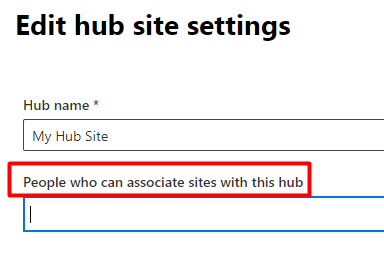
An example of how to add a security group is missing in the MS Docs:
Two workarounds for overcoming the listview threshold
These are two workarounds to see documents / list items in a view that exceeds the listview threshold of 5000 items.

Overcoming the listview threshold is as fun as succeeding in the limbo games.
This is changing all the time. When you read this, it might have changed. Today, 2021-01-05, me and my colleague found following two workarounds for listing over 5000 items in a list view in SharePoint Online:
Two site logos?
We have had troubles updating site icons in SharePoint Online. It might be related to one of the following:
- It occures only on hub sites
- The sites have a custom theme
The error message:
We experienced a problem updating the icon. Please try again in a few minutes.
But what I found is that there are two places where you change the site icon. If the first does not work, try the second one, that was what worked for us:
Listing all renamed sites in SharePoint Online
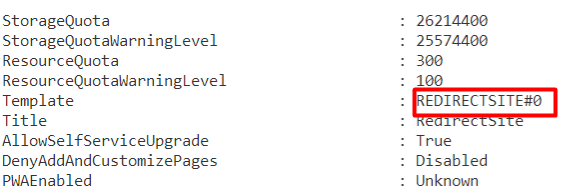
When you rename a site, a new site is REDIRECTSITE#0, you can get all the sites of that type by running
Get-SPOSite -Template REDIRECTSITE#0
Please consider some caveats with renaming a site url
Automatically detect new sites in SharePoint Online

Original image by William Warby. https://www.flickr.com/photos/wwarby/16414155179/in/photostream/
Sites in SharePoint are created all the time, not only for SharePoint, but also as storage for Yammer, Teams, Planner and other services in Microsoft 365. There are ways to keep track of them, but the ability to automatically detect a new site creation is quite appealing. Automatic detection means a trigger of a Power Automate (Flow) or a Logic App.
There are a few blog posts that exactly describe how you can detect when a new site is created in SharePoint Online: